
The Sovren Trading Guide
Everything from installing NinjaTrader to connecting your prop firm account, step by step with pictures. Take it slowly; you only do this once.
What you need
- A Windows computer (or Windows VPS) that can stay on through the New York morning.
- NinjaTrader 8 installed, and your NinjaTrader username and password.
- Your prop firm's welcome email, with your account login for NinjaTrader.
- This dashboard open, for the Sovren download and your activation key.
Two different logins, don't mix them up: your NinjaTrader login opens NinjaTrader and goes on your Sovren License. Your prop firm login goes into NinjaTrader's Connections, in step 3.
Set everything up
-
1
Sign in to NinjaTrader 8
Install NinjaTrader 8 from ninjatrader.com (it's a free download for Windows), then open it.
Sign in with your NinjaTrader username and password, the account you created on ninjatrader.com. This is not your prop firm login. You'll use that later, in step 3.
Important: the NinjaTrader username you type here must match the one in your License under Download & setup. If they don't match, Sovren can't verify your license.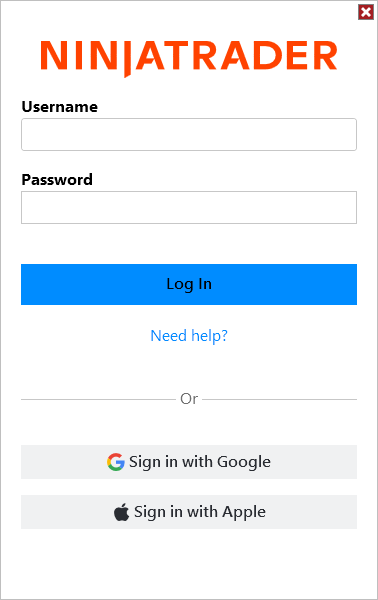
Tap or click the picture to see it bigger. Screenshot: NinjaTrader 8 Help Guide, © NinjaTrader, LLC. Your screen may look a little different. -
2
Choose how you want to trade
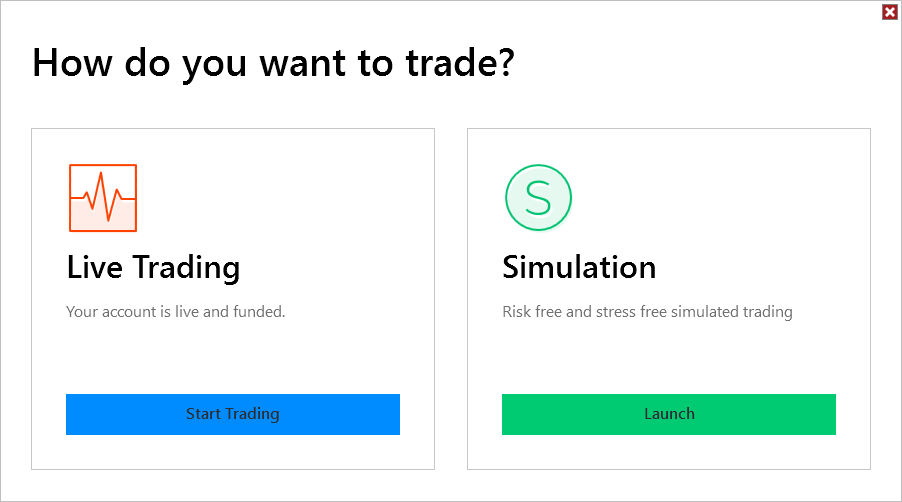
After signing in, NinjaTrader asks How do you want to trade?
- Prop firm account: follow your firm's welcome email. If your firm sent you a NinjaTrader license key, it will tell you which option to pick and where to enter the key.
- Just practising? Choose Simulation. You can try Sovren on the free Sim101 practice account first.
Tap or click the picture to see it bigger. Screenshot: NinjaTrader 8 Help Guide, © NinjaTrader, LLC. Your screen may look a little different. -
3
Connect your prop firm account
This links NinjaTrader to your prop firm so Sovren can place trades on that account. Have your firm's welcome email open; it lists the connection type and the login to use.
- In the main NinjaTrader window (the Control Center), click Connections at the top, then configure at the bottom of the menu.
- In the Available list, click the connection type your firm names. Many prop firms use a Rithmic connection; follow your firm's exact wording.
- Click add under the Configured list.
- On the right, give it any name you like (for example My Prop Firm), then type the user name and password from your firm's email. If there are other boxes, such as System or Gateway for Rithmic, set them exactly as the email says.
- Tick Connect on start up so it connects every time you open NinjaTrader, then click OK.
- Open the Connections menu again and click the name you just made to connect.
Connected? Look at the little dot in the bottom-left corner of the Control Center. Green means connected. If it stays another colour, see "My connection won't turn green" in the questions below.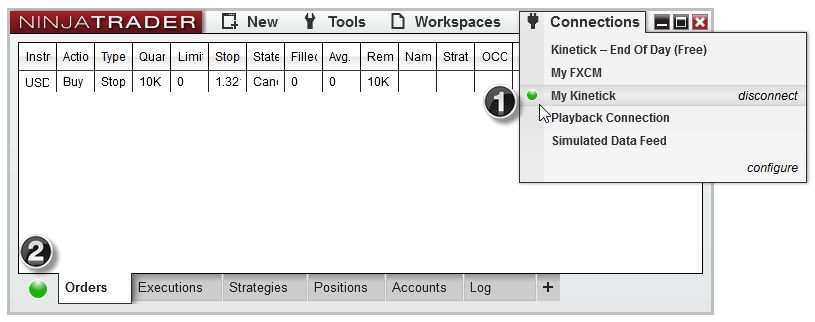
Tap or click the picture to see it bigger. Screenshot: NinjaTrader 8 Help Guide, © NinjaTrader, LLC. Your screen may look a little different. 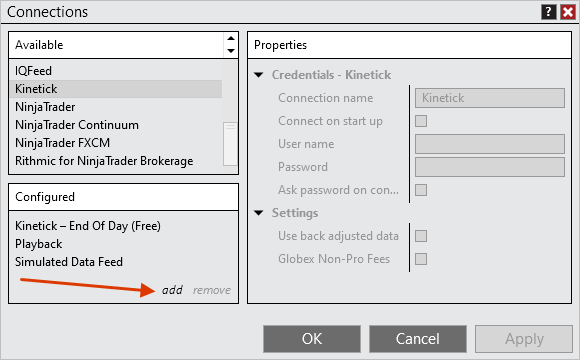
Tap or click the picture to see it bigger. Screenshot: NinjaTrader 8 Help Guide, © NinjaTrader, LLC. Your screen may look a little different. 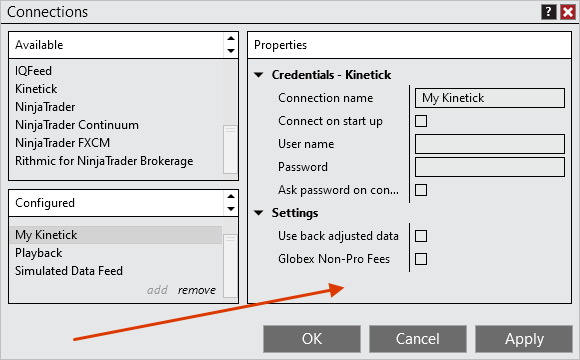
Tap or click the picture to see it bigger. Screenshot: NinjaTrader 8 Help Guide, © NinjaTrader, LLC. Your screen may look a little different. -
4
Check that your prop account appears
In the Control Center, click the Accounts tab at the bottom. Next to Sim101 (the practice account) you should now see your prop firm account. Its name comes from your firm and often includes the account size or a number.
If you only see Sim101, the prop firm connection isn't connected yet. Go back to step 3.

Tap or click the picture to see it bigger. Screenshot: NinjaTrader 8 Help Guide, © NinjaTrader, LLC. Your screen may look a little different. -
5
Import Sovren into NinjaTrader
- Download Sovren from Download & setup on this dashboard. It usually lands in your Downloads folder. Don't open or unzip it; NinjaTrader imports the file as it is.
- In the Control Center, click Tools, then Import, then NinjaScript Add-On...
- Pick the Sovren file and click Open. When NinjaTrader says the import worked, close NinjaTrader and open it again.
Updating to a new version? First click Tools, then Remove NinjaScript Assembly..., remove the old Sovren, then import the new file and restart NinjaTrader.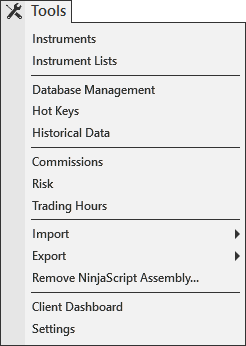
Tap or click the picture to see it bigger. Screenshot: NinjaTrader 8 Help Guide, © NinjaTrader, LLC. Your screen may look a little different. -
6
Open a 1-minute NQ or MNQ chart
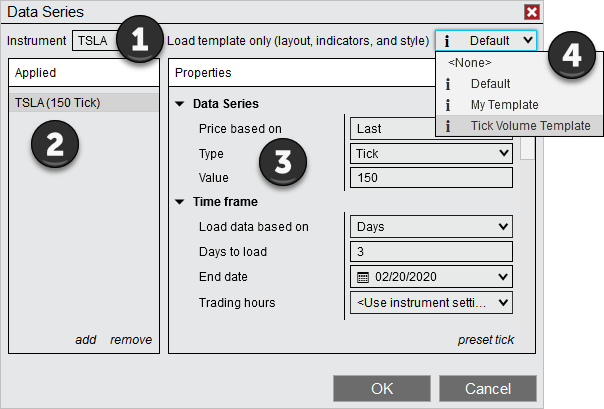
- In the Control Center, click New, then Chart. The Data Series window opens.
- Next to Instrument, type NQ (or MNQ for the smaller size) and pick the current contract month.
- Under Data Series, set Type to Minute and Value to 1.
- Leave Trading hours on the default for NQ (CME US Index Futures ETH), then click OK.
Tap or click the picture to see it bigger. Screenshot: NinjaTrader 8 Help Guide, © NinjaTrader, LLC. Your screen may look a little different. -
7
Add Sovren to the chart
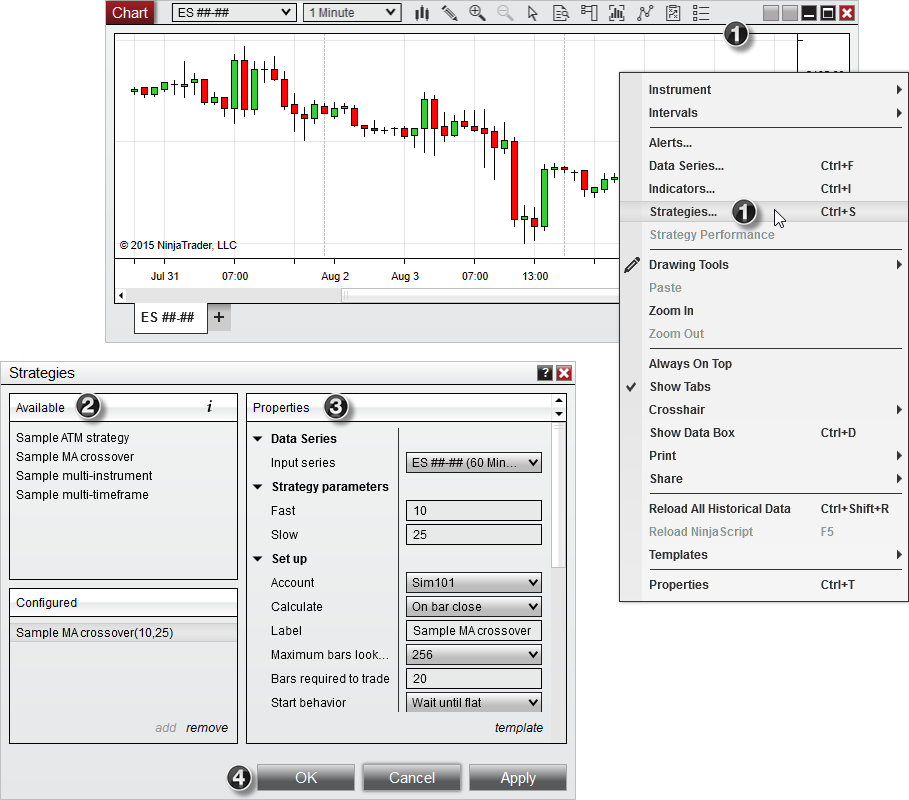
- Right-click anywhere on the chart and choose Strategies...
- In the Available list, click Sovren, then click add.
If Sovren isn't in the list, the import in step 5 didn't finish. Import it again and restart NinjaTrader.
Tap or click the picture to see it bigger. Screenshot: NinjaTrader 8 Help Guide, © NinjaTrader, LLC. Your screen may look a little different. -
8
Fill in the settings and turn it on
With Sovren selected under Configured, look at Properties on the right:
- Account: choose your prop firm account. Sim101 is practice only, and no real trades happen there.
- Activation key: copy it from your License under Download & setup and paste it in. Paste it in full, with no spaces at the start or end.
- Contracts: how many contracts per trade. If you're unsure, start with 1, and check your firm's limits.
- Tick Enabled, then click OK. Do this before 9:30 AM New York time.
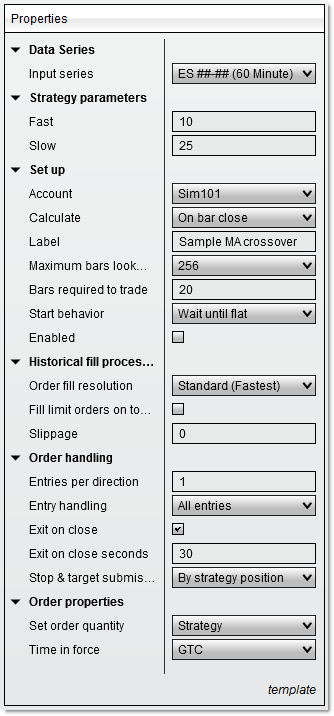
Tap or click the picture to see it bigger. Screenshot: NinjaTrader 8 Help Guide, © NinjaTrader, LLC. Your screen may look a little different. -
9
Check the badge on your chart
Sovren shows a badge in the corner of the chart, so you can see what it's doing:
- SOVREN LIVE Cleared to trade today.
- SOVREN WAITING Before the open, or a day it won't trade.
- NEWS DAY Sitting out a big news day.
- SESSION COMPLETE Done for today.
Leave your computer and NinjaTrader on and connected until Sovren is out of any trade for the day. Days with no trade are normal.
Daily checklist
- Before 9:30 AM ET start NinjaTrader and check your data and account connections are green.
- Enable Sovren on your 1-minute NQ or MNQ chart. Check the account and contract size.
- Read the chart badge: SOVREN LIVE means it's cleared to trade; NEWS DAY or SOVREN WAITING means it sits out today.
- Stay connected until you're flat. The protective exit only works while NinjaTrader is running.
- Review the trade in your trade journal. No trade is normal on many days.
NinjaTrader & prop firm questions
NinjaTrader basics
Do I have to pay for NinjaTrader?
Does it work on a Mac?
Which username goes on my Sovren license?
I forgot my NinjaTrader password.
My computer goes to sleep. Is that a problem?
Do I need to change my computer's time zone?
Connecting your prop firm
Which connection type do I choose?
My firm only gave me a web or phone app login.
My connection won't turn green.
- Retype the user name and password from your firm's email, carefully. They are case-sensitive, and copied text sometimes picks up a space at the end.
- Check any extra boxes (such as System or Gateway) match the email exactly.
- Make sure your account with the firm is active. A brand-new account can take a little while, and some firms ask you to accept data agreements once before the login works.
- Some connections allow only one login at a time. Close the firm's other apps, or NinjaTrader on another computer.
- Restart NinjaTrader and connect again. Still stuck? Your firm's support can check the login on their side.
I only see Sim101 in the account list.
I passed my evaluation. What changes?
Can I run Sovren on several prop accounts?
Does Sovren need my prop firm password?
Sovren on the chart
Sovren isn't in the Strategies list.
It says my license can't be verified.
It says I've reached my device limit.
The strategy shows yellow in the Strategies tab.
Why didn't Sovren trade today?
How do I practise first?
How do I turn Sovren off?
My internet dropped during a trade.
The full handbook: strategy, risk and operation
Training & help
Proprietary code and exact internal parameters are confidential. Futures trading involves substantial risk of loss; past performance does not guarantee future results. Disclosures.